
Jump to
- Description
- Purpose
- Download JWEED
- Basic Operation
- Pulldown Menus
- Event-based Data Retrieval
- Station-based Data Retrieval
- Get Data > breq_fast
- Usage Examples
- Query for stations within a user defined lat/lon box centered on the Black Sea area.
- Querying for events lying within 10 degrees of all IU network stations. This accomplished in 3 steps.
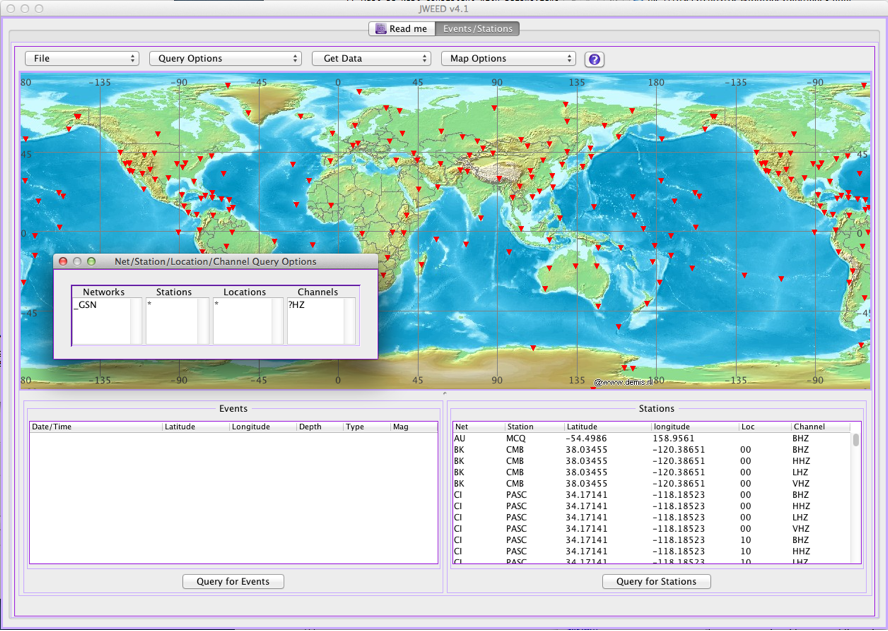
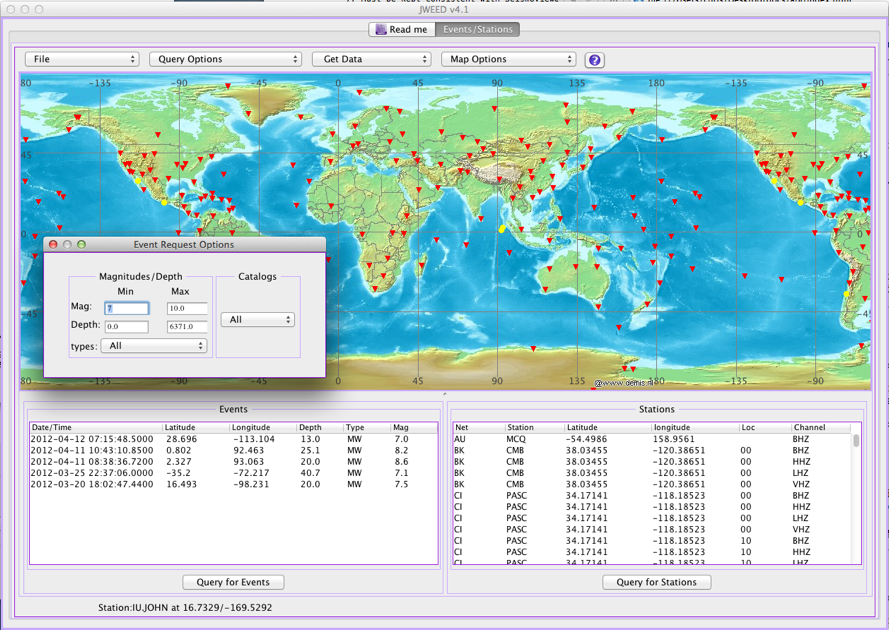
- Querying for stations within 45 degrees of azimuth from events. This is accomplished in 3 steps.
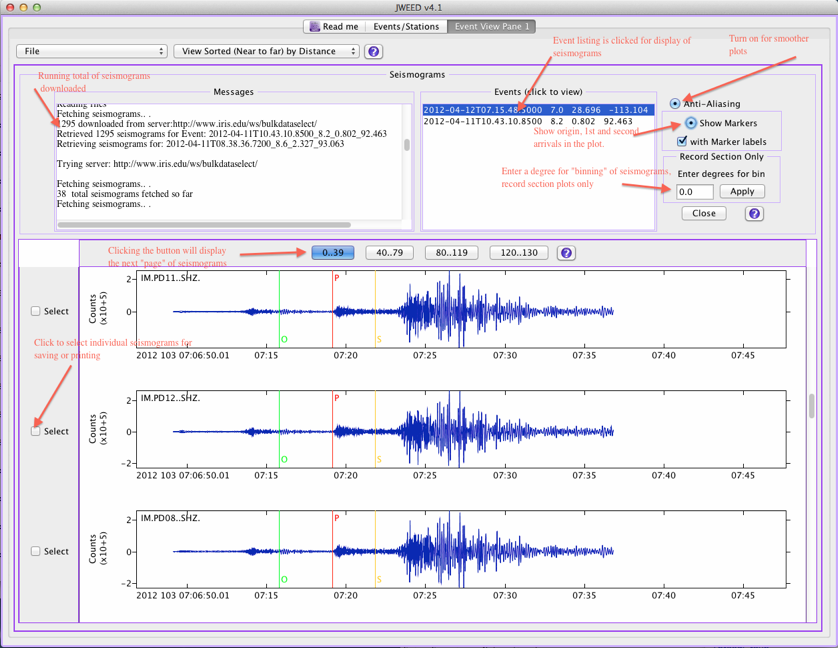
- Event-based request download example screen:
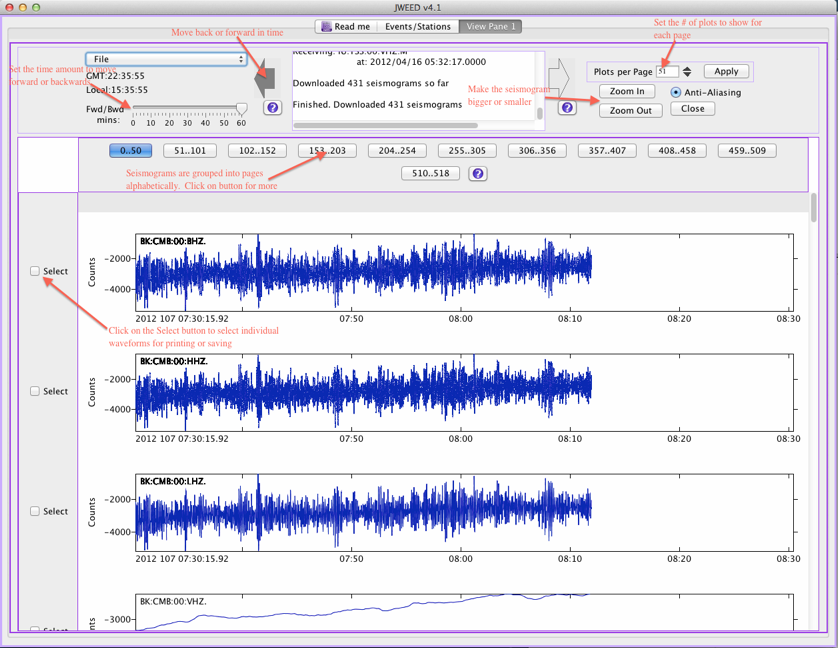
- Station-based request download screen example:
- Restricted Data Access
- Managing web services
- Troubleshooting and support
Description 
JWEED is a Java client that is compatible with the web services offered at IRIS DMC and data centers supporting the FDSN Web Services protocol. JWEED has been tested on recent Mac, Linux, and Windows operating systems and should run fine with Oracle’s Java 7 or later.
Purpose 
Using JWEED, a person can obtain station and earthquake information as well as download and plot timeseries data.
You can obtain data using JWEED with just a few steps:
- Select some stations
- (Optionally) select some events
- Specify the time window or arrival time for station data
- Download and view the data
Download JWEED 
You can download JWEED by filling out this web form.
Basic Operation 
When first invoked, JWEED presents a screen with a map of the world. Above the map are pulldown menus with controls for modifying queries, data downloading, map control options and file saving and loading. Below the map are two areas for querying and listing events and stations.
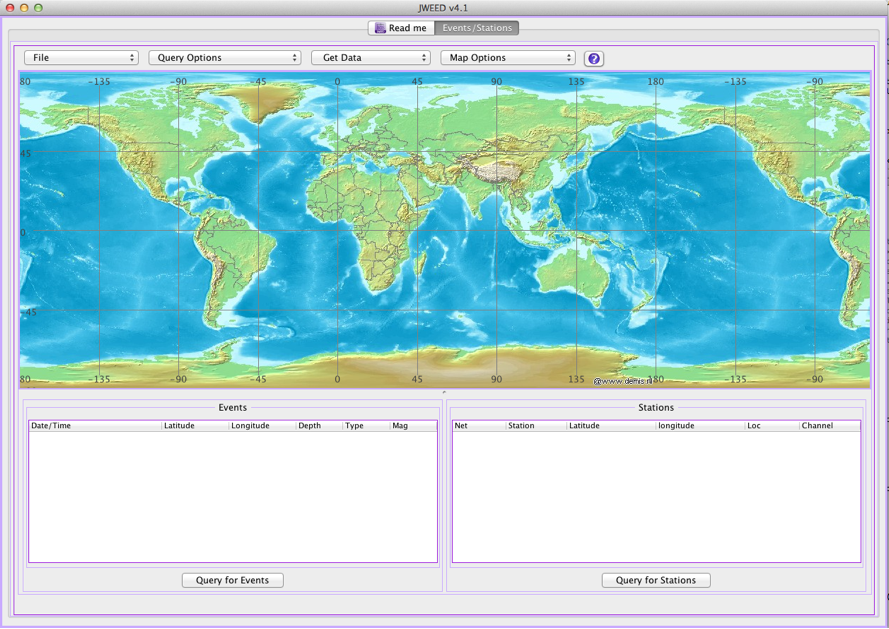
The example below illustrates a simple query for events and stations. The user draws a lat/lon box on the map which then delimits the event and station queries. Events are the filled yellow circles with the red triangles being the stations.
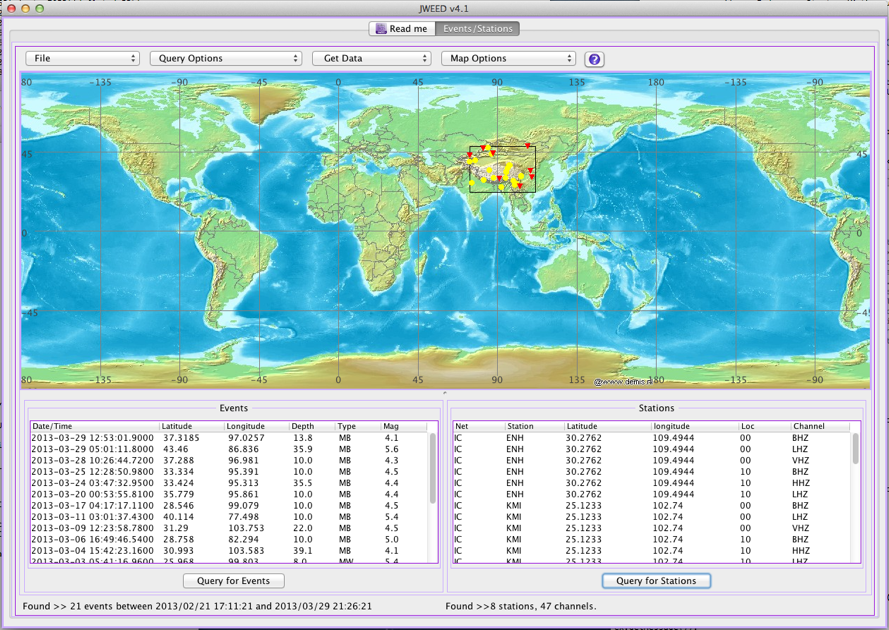
A listing for the events and the stations is created in the appropriate table. You can select individual events and stations by clicking the listing line for that event or station.
To deselect, or select more than one, the key combination is one of the following:
- Window/Linux/Oracle users:
<control><left mouse btn>to select multiple. - Mac users:
<Apple><mouse btn>to select multiple
Deselect using the same sequence.
On all platforms you can select a range of rows by first clicking on one row, move to another row and using: <shift><click>
All rows between these will be highlighted indicating selection.
At the bottom of the screen is an area used for messages:

Pulldown Menus 
There are four pulldown menus running across the top of the map.

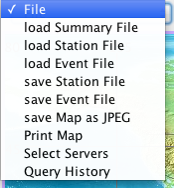
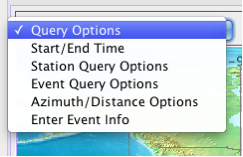
The File pulldown is used to save and read files to and from disk. The Query Options pulldown allows you to modify the event and station queries. The Get Data pulldown is used to download and view the data and the Map Options can be used to erase plotted events, stations and other plotted items. When you click on the up and down arrows a menu drops down revealing the options.
File 
| Command | Description |
|---|---|
File > load Summary files |
When you make a event-based request for seismograms a summary file is created and placed in the JWEED working directory called JWEED.dir in your home directory. This is a text file which you can view using any editor. Be careful not to alter the format of any fields. If you select a summary file, JWEED will reload the events and stations into their respective tables and plot them on the map. You can then request the seismograms via the Get Data > Seismograms option.The summary file is generated when you ask for waveforms via the Get Data button. It lists all the events and each event’s associated stations along with a computed time window indicating what the start and stop times for download purposes. JWEED reads each line, extracting the event information, station, the channel along with the computed time window. It then makes a request for waveform data. All waveforms are organized by event. |
File > load Station Files |
A previously saved station list (see below) can be re-loaded using this option. |
File > load Event Files |
A previously saved event list can be re-loaded using this option. |
File > save Station Files |
Once you have some stations loaded into the table and plotted on the map these can be saved into a text file. You can re-load these stations as described above. |
File > save Event Files |
Same as the File > save Station Files option. |
File > save Map as JPEG |
You can save a copy of the map with the plotted stations and events to a disk file. |
File > Print Map |
Makes a hard copy of the Map. |
File > Select Servers |
Use this menu to select from available web services. Here you will find one or more data centers with web services that JWEED can access. You can adjust the priority order of the centers shown and turn centers on and off. This list will be updated dynamically from IRIS DMC as other data centers come online. |
File > Query History |
A listing of your queries for events and stations is saved and be pursued here. If you queries are not working as expected you can perhaps see why. |
Query Options 
| Command | Description |
|---|---|
Defaults |
On program invocation the options are set to:
|
Start/End Time |
Use this option to adjust the time window of interest. This is most useful for event queries but it can also be used for delimiting stations in a query. For Station-based data retrievals (see below), JWEED will use these start and stop times for the download start/stop times. |
Station Query Options |
You can refine the station query by entering networks, stations, locations and channels. Wildcards are allowed, eg: BH* will query all broadband, high gain channels. |
Event Query Options |
This option is used to limit event searches to magnitude range/type, depth and catalog. |
Azimuth/Distance Options |
Azimuth Once you have stations and events loaded you can limit the stations to those which fall within the azimuth or back azimuth ranges. You need to have both events and stations loaded first. JWEED will eliminate stations which do not fall with in the parameters. Map a Distance There are three ways to use this.
|
Enter Event Information |
You can enter an event origin and magnitude by hand, which is treated by JWEED just like an event from a database. At a minimum enter in a lat/lon, time and depth. |
Get Data 
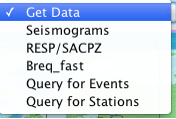
| Command | Description |
|---|---|
Get Data > Seismograms |
This menu item allows retrieval waveform data. There are two modes of seismogram retrieval: event–based and station–based retrieval. Each will be explained below in the sections titled Event–based Data Retrieval and Station–based Data Retrieval |
Get Data > Resp/SACPZ |
This will download the RESP response files and the SAC Poles and Zeros files for the listed stations. You will be queried for a directory into which the files will be placed. These are text files for use by evalresp/Jevalresp (response files) or SAC (SAC Poles and Zeros). “More information on RESP files”:http://www.iris.edu/KB/questions/69/What+is+a+RESP+file%3F For SAC Poles and zeros see the rdseed manual. Look specifically at the section on meta-data output. For SAC usage look to documentation for the sac TRANSFER function |
Get Data > breq_fast |
The venerable breq_fast request format is used to send an email to the IRIS DMC detailing the stations and channels with start and end times. The IRIS DMC processes the request, with confirming emails, and created a seed volume ready for pickup via ftp. More information » . |
Query for Events and Query for Stations |
These work exactly like the respective buttons located below the events and stations table listing. Just here for your convenience. |
Map Options 
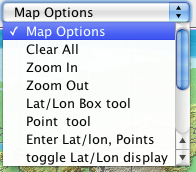
| Command | Description |
|---|---|
Map Options > Clear All |
Removes any Lat /Lon boxes, events, stations or points, distance circles and empties the event and station listing tables. |
Map Options > Zoom In |
To zoom into an area, you must first draw a lat/lon box encompassing the area to enlarge. If there is more than one Lat/lon box drawn then an error message will be shown. |
Map Options > Zoom Out |
Moves up to the previous zoom level and displayed region. |
Map Options > Lat/Lon Box tool |
This is the default drawing mode of JWEED. You click and drag to define a box on the map. You can make as many as necessary. The queries for events and stations will be limited to those regions. |
Map Options > Point tool |
When toggled the mouse cursor turns into a cross marker. In this mode, when clicked, a red cross will be drawn on the map. This is useful when used in conjunction with the Query Options > Azimuth/Distance tool. You can define a point on map then draw a distance from the point using Query Options > Azimuth/Distance. Then you can locate events and or stations within this distance. |
Map Options > Enter Lat/lon, Points |
If your needs are such that the drawing tools don’t offer enough precision, you can create a lat/lon box or a map point by manually using floating point numbers. A small screen is provided for this entry |
Map Options > toggle Lat/Lon display |
When toggled, moving the mouse over the map will result in the latitude and longitude to be displayed. |
Map Options > Remove Events |
Erases all events (yellow filled circles) from the map and empties the event listing. |
Map Options > Remove Stations |
Erases all stations (red filled triangles) from the map and empties the station listing. |
Map Options > Remove Lat/Lon boxes |
Erases all lat/lon boxes from the map. |
Map Options > Remove Distances |
Erases the distance circles from the map. |
Map Options > Remove Points |
Erases the user-entered points from the map. |
Event-based Data Retrieval 
If you have both events and stations queried, JWEED will initiate an event-based request. This is implemented by having the person specify arrival phases that JWEED uses to calculate the arrival times from each event to each station. You specify a phase for the starting time and the ending. Waveform data for each station will start and end at these times.
To this end, JWEED displays a panel which allows entry of these parameters:
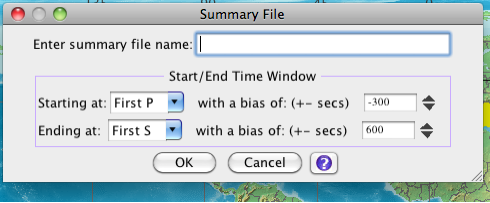
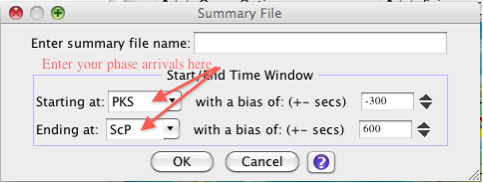
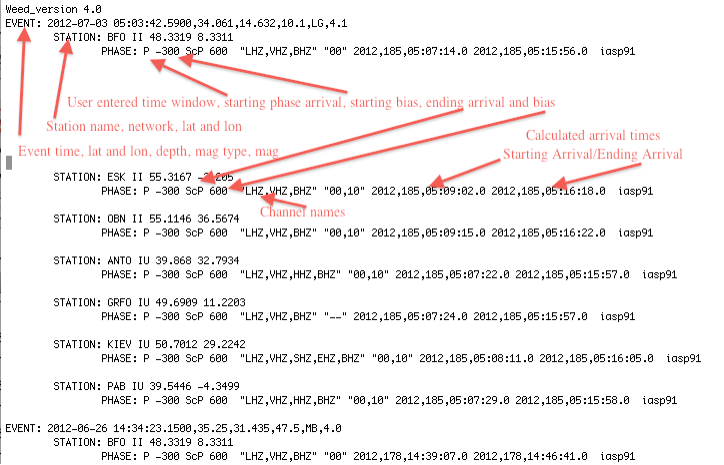
Enter summary file name: The summary file is a text file which holds information relating to this request. Each event in the listing is entered into this file and under each event are all the stations in the station listing. Under each station line is a line detailing the start and end time window. The summary file is saved and can be reused.
Start/End Time Window: With event based retrieval you define a time window which is calculated using an arrival time. You choose an arrival for the start and the end of the time window. JWEED will calculate these times using the events and stations queried. To add or subtract time from the arrival enter a number into the Bias entry (in seconds). A positive number adds time and negative subtracts.
Phase Arrivals: There is a list of arrivals from which to choose, or you can enter a phase arrival by editing the entry.
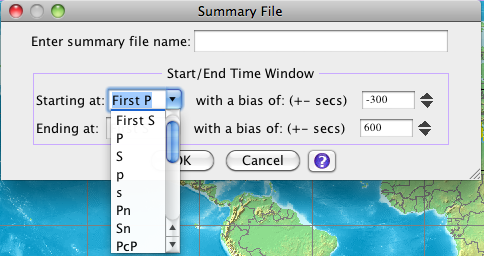
Note the scrollbar which you can use to select additional phases. The complete list is
P, S, p, s, Pn, Sn, PcP, ScS, Pdiff, Sdiff, PKP, SKS, PKiKP, SKiKS, PKIKP, SKIKS
If you need an arrival not on the list, simply enter the arrival in the editable top entry area.
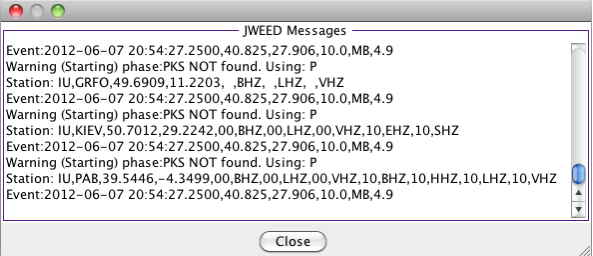
An error message will result if the arrival is not calculated for the event to station distance.
An example summary file extract:
Once you have created a summary file JWEED starts the event-based data retrieval process. A new screen is presented (Event View Pane 1). As JWEED reads each line of the summary file, waveforms for each event are retrieved and messages are displayed indicating the running total. When each event is finished the event’s time is placed in a listing and the next event’s retrieval is initiated. The process is repeated, with event times being placed in the listing, until all events are processed.
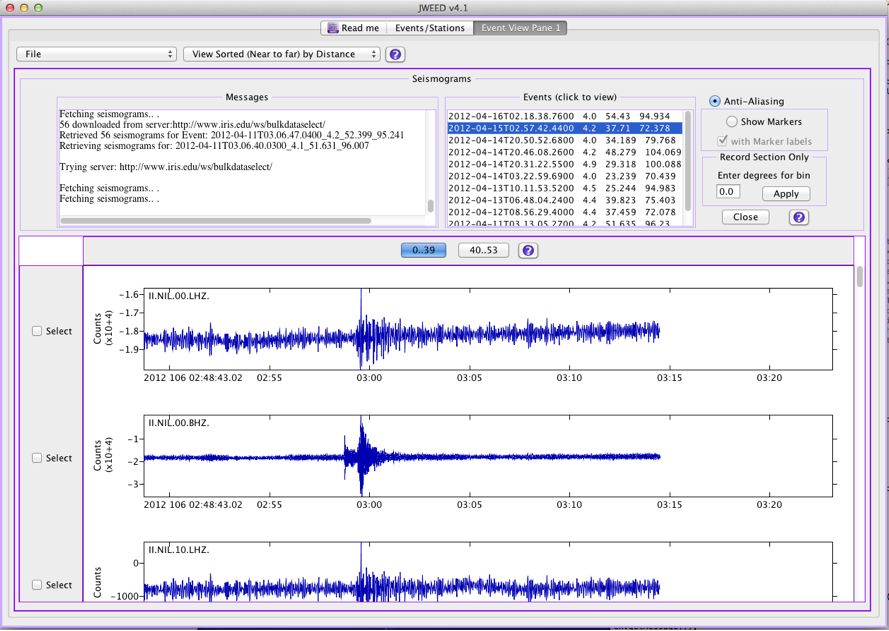
To display the event’s waveforms you click on the listing for that event:

At the top of the seismogram viewing screen is a row of pulldown menus:

Saving waveforms 
To save the waveforms to disk use the File pulldown menu:
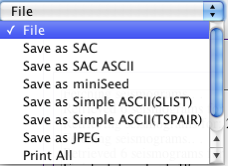
If you haven’t selected an event (see above), saving waveforms to the file formats, SAC, SAC ASCII, miniSEED and the two Simple ASCII formats, will process all events. If you have selected an event and the event’s waveforms are displayed, these file saving options will process only those event’s waveforms. For saving JPEG or Print All option, you need to have an event selected for viewing.
View options 
There are four viewing options:
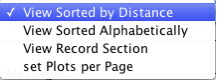
Sorted by Distance is the default. Sorted Alphabetically is offered as well as Record Section. If there are too many waveforms (the usual case) that can be plotted on a screen, JWEED divides the plots into pages. To move from page to page, click the appropriate button.
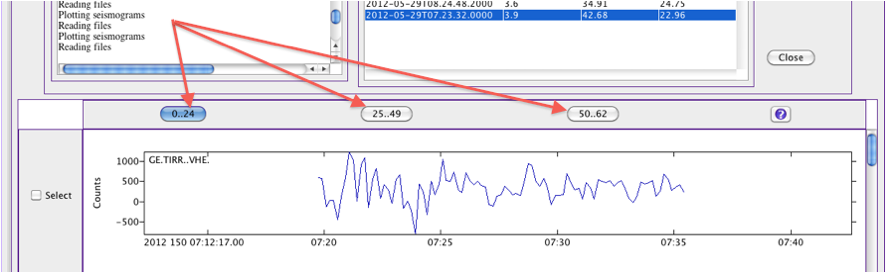
You can set the number of plots per page to any value up to 100 (set Plots per Page). To select individual waveforms for file operations, click one or more of the Select check boxes. If none are selected, all waveforms will be saved or printed.

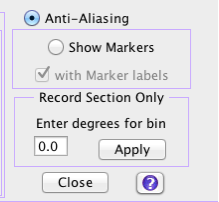
Anti-Aliasing will smooth the waveform lines.
The Show Markers will place the computed origin, first arrival and second arrival as indicated when you created your summary file. You can toggle the label on and off as it might clean up the display.
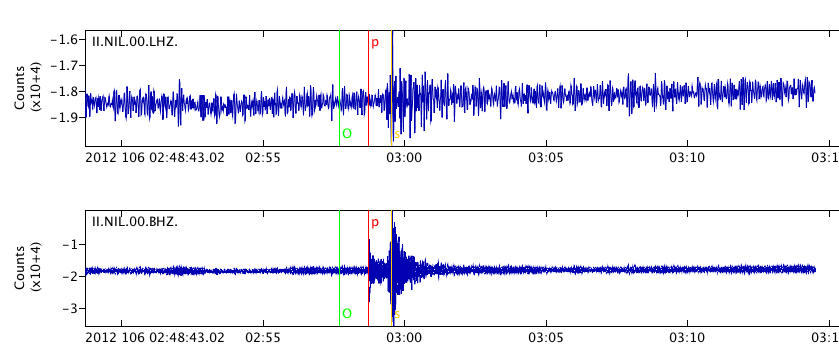
In this case, the origin is indicated as a green line and the letter ‘O’, the first arrival was ‘P’ and the second computed arrival was a ‘s’.
For record section plots, you have the option of defining a bin with a degree envelope. If stations are too close together you can eliminate stations by entering in a degree. Degree can be fractional. For instance, if you indicate a degree of 2, then JWEED, once it has plotted a distance will skip a station if that station’s distance from the event lies within the 2± degrees of this previously plotted station.
Station-based Data Retrieval 
If you only have stations downloaded, pressing the Seismogram button will initiate a screen very similar to the event-based waveform retrieval. The waveforms are displayed as they are downloaded, into pages as described above. The start and end times of the waveforms are determined from the Map screen’s Query Option > Start/End Time entry. All waveforms will have the same start and stop times. This is a quick and easy way to view and save seismograms. Here is a look at the partial screen:
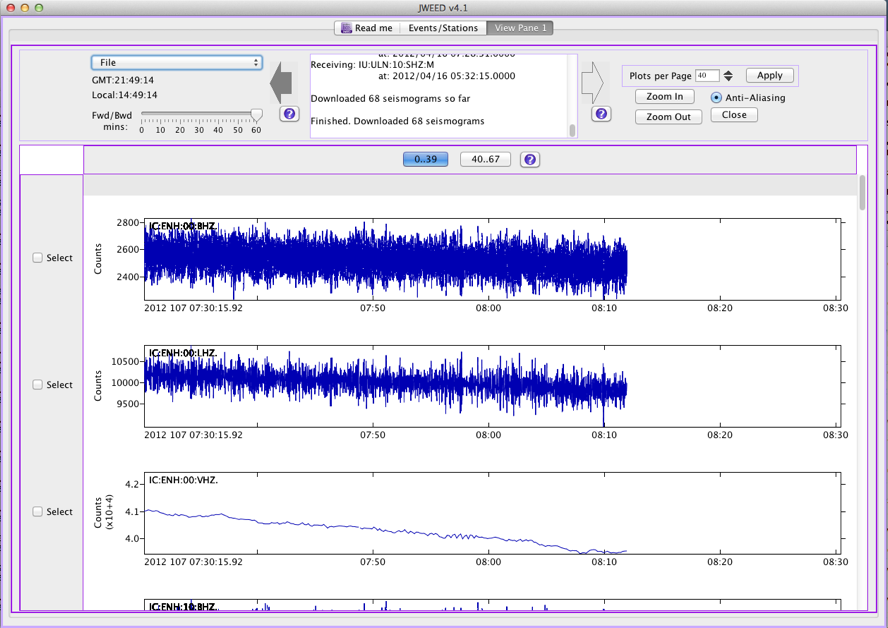
JWEED will display 60 mins of data per screen. To go back further press the large arrow buttons. If, on the Map’s Query Option > Start/Time screen you had entered an end time which is in the future, JWEED will stream the data until this end time is reached.
The File pulldown menu is the same as described in the previous section.
The large left and right arrows allow you to move through the waveform to an earlier or later time. You can adjust the time of each arrow click by the Fwd/Bwd slider. It is set to 60 minutes by default, so if you click the left button the new page’s time will start one hour earlier. If you set it to 30 minutes, then it will be 30 minutes earlier or later. In this way you can center a waveform on the screen.
Get Data > breq_fast 
This tool lets you send a request email to the IRIS DMC, detailing the stations and channels with start and end times. The IRIS DMC processes the request and builds a custom SEED volume for the user in FTP. A confirmation email is sent to the specified email address when the SEED volume is ready for pickup. You need to supply your name, email address, seed label and phone number in the form. The email address is used by the breq_fast request processing system to send status emails back to you. The label is for you to enter in an identifying marker for this request. The resulting seed volume will have the label in the file name.
You have two choices for email address to send to. Sending to breq_fast@iris.washington.edu is the typical destination for these requests. However, you can also send to netdc@fdsn.org, which is a special request handler that will distribute elements of your request to different data centers, depending on the network codes for which you are requesting data. In addition to SEED data, you can also opt for requesting other data formats: a dataless seed volume, a miniseed file, or a sync file.
Typically, your breq_fast requests are sent to the IRIS DMC, but there are also two other organizations that support the breq_fast request: GEOFON and NCEDC.
For both netdc and breq_fast requests you can save the file to disk.
After clicking the Send button you will see various messages to and from the mail system. Followed by “Message accepted”.
Note: To send a breq_fast or net_dc request via the email system you must be transmitting from a host with a static IP address. No dynamic IP addresses will work: the email will be rejected.
Usage Examples 
Query for stations within a user defined lat/lon box centered on the Black Sea area. 
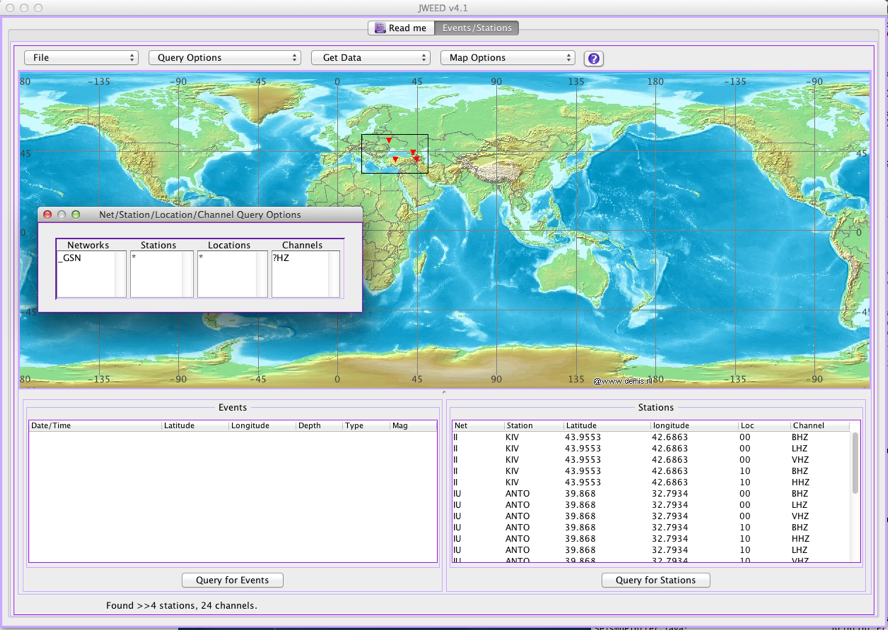
Querying for events lying within 10 degrees of all IU network stations. This accomplished in 3 steps. 
1. Query first for all IU network stations.
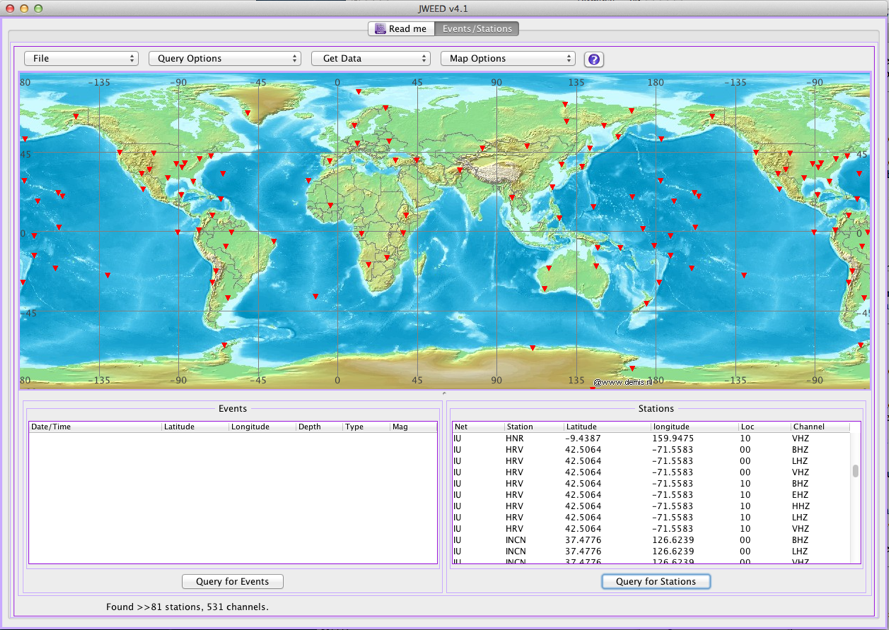
2. Draw a distance of 10 degrees from all stations (Query Options > Azimuth/Distance):
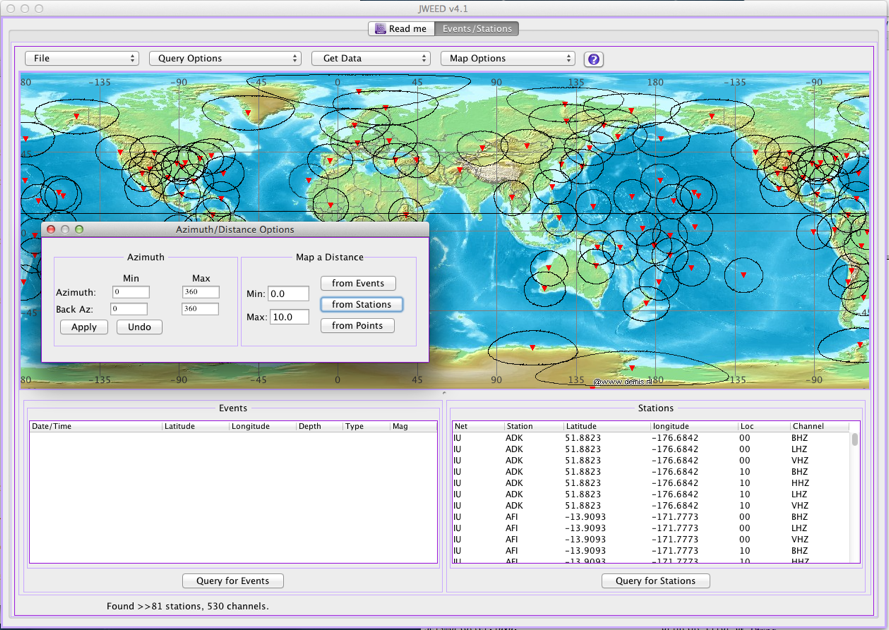
3. Query for events lying within these distances going back one month (Query Options > Start/End Time Options)
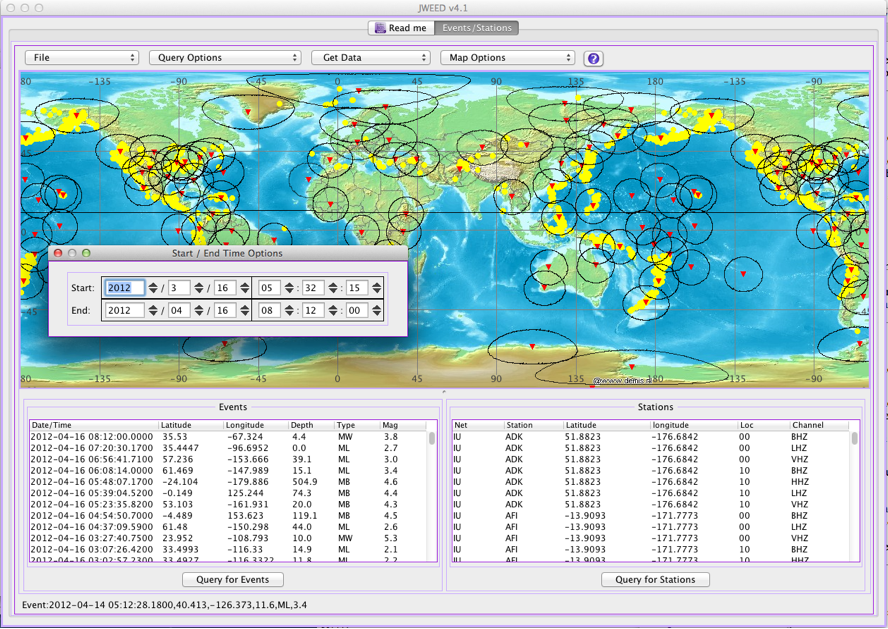
Note: you can find all stations lying within a specified distance from events by first querying for events, drawing a distance from events, then querying for stations.
Querying for stations within 45 degrees of azimuth from events. This is accomplished in 3 steps. 
After modifying the station options (Query Options > Station Query Options), load some stations. In this case all GSN broadband:
After modifying the event options (Query Options > Event Query Options) query for events. This example uses a magnitude range greater than 7:
Modify the azimuth (Query Options > Azimuth Distance) option for 45 degrees, press Apply:
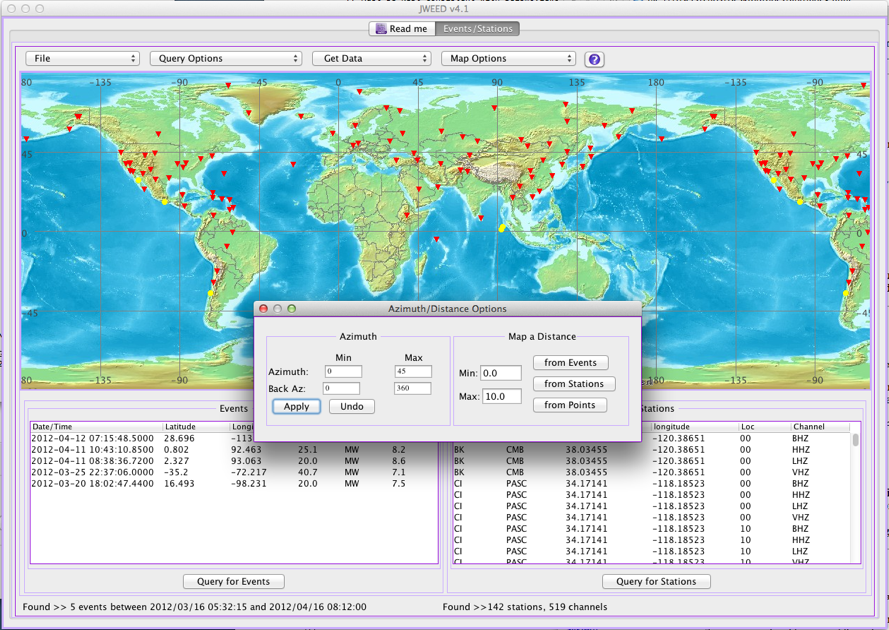
Only those events which have satisfied the azimuth parameters will be listed and mapped.
Event-based request download example screen: 
Station-based request download screen example: 
Restricted Data Access 
There are a number of networks available at IRIS DMC that are considered restricted data, which means that its rules of distribution are, for a time, limited to the principal investigator (PI) responsible for the data collection and those that the PI delegates access to that data.
Restricted data is guarded by a user and password form of access. Each registered user has a unique password and encryption key that they are given. IRIS DMC then tracks data sets that the user is authorized to access.
If you do not currently have a restricted data password assigned to you, you can register for an access account at this web page: http://www.iris.edu/data/restricted_req.htm
JWEED facilitates access to restricted data through the weed.props properties file found in the user’s home directory inside the JWEED.dir directory. The properties file is a text file with settings specific tohow JWEED runs. You can add properties specific to restricted data access here by opening the file in a text editor and adding the following line:
nameAndPassword=myemail@myhost.net,abc123DEFpass
The property name, nameAndPassword, must always be present. To the right of the equal sign are two comma separated values, the registrant’s email address, which serves as a user ID, and a password code that has been provided by IRIS.
Once you have edited and saved the weed.props file with your own entry, you will need to restart JWEED to have the change take effect. If entered correctly, and the user is authorized, access to restricted data is seamless.
Managing web services 
Web services at IRIS and FDSN data centers around the globe have been bringing web services online following FDSN standard URL addresses. These have been growing and changing over time and JWEED is designed to grow with it. One condition that can occur for long-time users of JWEED is that they will find their web service list containing entries that no longer work. Case in point is the old www.iris.edu/ws address, which no longer works. Users that still have their server configuration pointing to this service may find that they are getting no response when asking for stations or events. There are a few different ways to remedy this issue:
Turn off non-functioning servers.
- You will find the list of available servers in the tool popup under
File > Select Serversin the dropdown menu. - There are buttons next to each server listed. This list is automatically appended to from the IRIS DMC when you are on the network. However, stale entries may remain.
- If you find a stale server entry, such was the IRIS server pointing to
www.iris.edu/ws, deselect the entry by turning the button off. - Make sure you have the ‘IRIS-FDSN services’ and ‘IRIS DMC services’ entries turned on.
- Other data centers that may be listed may also be selected. JWEED will attempt to access these in the order listed.
- To change the priority of the web services, highlight and then drag each line to the order you wish them. The top line will have the first priority in providing matching data.
Or reset your weed.props configuration file, which JWEED automatically generates.
- Close your current session of JWEED.
- Find your
JWEED.dirdirectory, which is probably located in your user’s home directory, and cd into it. - Copy
weed.propstoweed.props.old. - Delete the
weed.propsfile. - Restart JWEED. You should have a fresh configuration file.
Or edit your weed.props configuration file.
- Close your current session of JWEED.
- Find your
JWEED.dirdirectory, which is probably located in your user’s home directory, and cd into it. - Open
weed.propsin a text editor. - Remove all entries that look like
web_server1=..,web_server2=... - Replace with the following entries that are currently known to work. JWEED will add to this list later automatically:
web_server1=IRIS-FDSN services,service.iris.edu/fdsnws,1,1
web_server2=IRIS DMC services,service.iris.edu/irisws,1,1
web_server3=NCEDC-FDSN services,ncedc.org/fdsnws,1,1
- Save your
weed.propsfile - Restart JWEED.
Troubleshooting and support 
General tips 
If you have problems starting up JWEED, here are some general tips to solve some of the most common problems:
- Delete (or move) your JWEED configuration file: This is found in your home directory under
JWEED.dir/weed.props. If you delete this file and restart JWEED, it should generate a new configuration file. If you have special configuration settings, make a copy of the file elsewhere before deleting weed.props. You can copy the information back in later. - Check your operating system version: JWEED and the installation software InstallAnywhere is only supported on recent Mac, Linux and Windows operating systems. A list of operating systems supported by InstallAnywhere »
- Check your version of Java: JWEED requires Java 7 or later. You can check your Java version from the command line by typing
java -version.
Contact us 
If you are still having problems, either send an email to jweed@iris.washington.edu or fill out our online contact form, including the following information:
- The version of JWEED you have installed
- Your operating system platform and version (eg: Mac OSX 10.10.2, Linux Ubuntu 13.0.1)
- Your version of Java (you can enter
java -versionon the command line) - Copy and paste any errors you see when starting up JWEED
- Take a screenshot of any graphical user interface (GUI) errors you encounter
The more specific you are about your particular installation, the faster we can help you.
Categories
Data Access , Data Extraction , Plotting and Display , Web Service Client
Release date: Modified date: